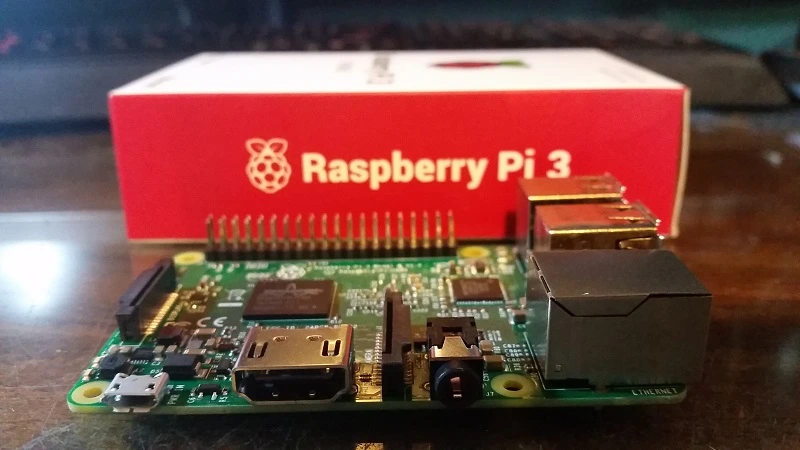
Learning about software and hardware all at once? The Raspberry Pi is an amazing tool to help you learn all these concepts. The Python programming language is an even better option because it is really simple to learn. Plus, Pi has an amazing amount of support for Python. In this guide, you will learn how to program a Raspberry Pi with Python step-by-step, helping you learn practical Python skills helping you set up and complete real-life projects.
You don’t need a lot of expensive equipment, just great problem-solving skills and the right set up to build a safe and effective workflow.
Tools
You could always start with just the basic tools and upgrade later, but if possible gather the below tools first:
- Modern Raspberry Pi
- 16GB MicroSD card
- Power supply for your Pi
- An HDMI cable and monitor (or a headless setup)
- A headless setup (optional)
- Mouse and Keyboard (optional)
- Wi-Fi or Ethernet (cabled internet)
If you are trying to control hardware, you will also need other basic components along with an LED, resistor, and jumper wires. Start software-first, then add hardware.
Step 1: Putting the Raspberry Pi OS on the MicroSD Card (The Clean Starting Point)
The Raspberry Pi OS is a branched Linux OS. You need to write it to your MicroSD Card. Once it is done, you will boot the Pi for the first time. During the first boot, you will need to select your region, get connected to your WiFi, and set a password. You should get in the habit of keeping your Pi up to date on the first of every month because it will help you avoid compatibility issues and bugs.
If you take your time on the boot screen, set up your Pi, and get a clean OS, it will help you in the long run when you are trying to learn how to program a raspberry pi with python. Many users get stuck here because of the rush.
Step 2: Updating the System and Checking if Python is Working
When you get to the Raspberry Pi OS, you will begin by updating the system. This will ensure that the drivers and tools are stable. Most of the time, Raspberry Pi OS comes with Python, so you shouldn’t need to do any installation.
Then, you should verify that you have the ability to run Python and which version of it that you are currently on. Many of the projects will prefer that you are on Python version 3 and, if you plan on sticking with the preinstalled tools on the Raspberry Pi OS, you should be good to go and you won’t have to worry about version conflict.
Step 3: Selecting Your Python Workspace (Where)
You have two options to set up your programming environment: you may use the Raspberry Pi to set up the Python programming environment directly on the device or you may set up the Python programming environment on any other computer and remote connect to the Raspberry Pi computer. Either method is fine.
If you decide to program directly on the Raspberry Pi, you will have access to an editor that is very simple to use. Most likely, the editor that is included in your operating system will allow you to create a Python program and execute the program with a single click. Having access to an operating system with such simple functionality will make the learning process more optimal.
If you decide to use a laptop or a PC, you will have to set up your Pi to allow remote access using SSH and you will have to set up your editor to allow remote editing. Setting things up this way is considered a more “professional” way to do the same tasks, but there is a little more effort to be put into this way. Regardless of your choice, you will be learning how to program a raspberry pi with python and go through the same basic steps: create a file, execute it, and debug it through a cycle of testing.
Step 4: Running Programs in Python For The First Time (Without Starting To Think About It A Lot)
I suggest easing into things with a smaller goal in mind. Don’t try to do things with a bunch of sensors from the start. Get to learn the basic workflow to get things going:
- Make a Python file
- Execute that file
- Scan the resulting output
- Make a change (preferably a small one)
- Execute the program one more time
This loop is nothing more than a repeatable technique to teach yourself confidence. Which in turn, teaches how to go about debugging things before you start things that are more complex. When you get to the point of running more intricate scripts, then you can get to go about integrating GPIO and you hardware with a lot more ease than you would have without doing that first.
Step 5: Getting To Know GPIO (The Number One Tool For The Raspberry Pi)
The GPIO pins are what will allow you to communicate with the Raspberry Pi. You are able to perform actions like switching things on and off, reading different signals, and also controlling different devices like relays, LED lights, as well as some sensors. But, in order to do all of this, you need to be respectful to the GPIO pins.
Before making any connections, there are a few things that you should understand:
- Each pin only provides a limited amount of current
- Wiring something incorrectly could damage a component
- Resistors are often necessary as are correct ground connections
- You should be able to identify power pins and data pins
When people say how to program a raspberry pi with python, they are asking about how to control the hardware. This starts with the correct and safe use of the GPIO pins. If you keep things safe and simple, you will be able to enjoy your projects instead of dealing with random failures.
Step 6: Use GPIO Libraries that Are Made For Beginners
When you are using Python to control your GPIO, you will have the ability to use some libraries that simplify the process. Some libraries are meant to focus on making control more readable while others offer greater manual control.
It is recommended that beginners use libraries that are meant for learning and control as they will be able to achieve control over LEDs, some buttons, and simple. This will allow you to control a lot while doing little and then you can use more advanced control later if needed for more complicated projects.
Instead of memorizing, learning how to use it will save you time. Example of steps to use it.
- Connect wires to the correct pins.
- Select whether it will be an Input or Output.
- Decide whether you will Read or Write something to the Output.
- When you’re done, make sure to disconnect all wires and clean the space.
Step 7: Start Adding Basic Components, (LED, Button, Buzzer)
Once you understand the basic steps you can move on to some simple hardware projects.
A good starting point in hardware would be:
- 1) Make an LED light
- 2) Create a button
- 3) Use a button to turn the LED on/off
- 4) Use a buzzer so it can sound
- 5) Combine two inputs and one output
Little tasks like this develop wiring, logic and troubleshooting skills. They also develop the patience needed to be successful in hardware work.
Step 8: Use Sensors (Temperature, Motion, Distance)
Using sensors can make your Raspberry Pi projects more interesting. Sensors can help you find and control heat, motion, and the proximity of things. Some skills that you can learn with sensor projects are:
- Knowing how to read values that change over time
- Being able to understand confusing or unclear data
- Knowing how to deal with a data loss or a data that is incorrect
- Being able to record and analyze what you have found.
Using sensors can also help you understand timing. After learning to use sensors you will be able to control the time. You can set the control of the sensor to be whatever you would like (Once a second, once a minute, or you can set it to control the sensor only during specific events). This all can be controlled with simple code using Python.
Step 9: Do External Device Control (Motors, Relays, etc.)
Motors, relays, and high-power devices require extra care. You should not drive them directly from GPIO pins. You will often need driver boards or modules that provide protection to the Pi and manage the higher loads.
To control things like fans, pumps, or lights, you must use the proper modules and work to safe wiring guidelines. You should also ensure that power supplies are correct and that there are no loose connections. The nature of these will require more work in the beginning.
Step 10: Automated Program Execution
After everything is built, it is only logical to have it run on boot. This allows the Pi to truly be a Pi and not a computer.
This is where the “real” street cred comes from. You will have finished a series of learning scripts and will be done with the individual building blocks. The ability to program a Raspberry Pi with Python for real-world projects, such as Home dashboards, sensors, Python based alarms and so on is only available to a few. When you create a simple startup setup, you are also creating the ability to run the Pi programmed tasks automatically.
Step 11: Fixing Problems That Commonly Occur
There are so many ways errors can occur with both hardware and software. You will likely need to debug many times. Some of the more common errors are:
- Choosing incorrect pins
- Loose wires/breadboard connections
- No resistor/incorrect resistor value
- Not sharing ground properly
- Incorrect libraries/permissions
- Outdated libraries or operating system
When fixing issues, stay calm and try the following methods:
- Start by checking the power and wires
- Start diagnoses with one component
- Make only one change at a time
- Make sure to read errors and messages completely
- Double check that the pin mapping to your circuit is correct
Step 12: Projects to Start Gaining Confidence
Here are a few more focused project ideas: build a temperature logger, motion alert system, simple home status light system, plant moisture reminder, mini weather station, and smart light with a light sensor.
These projects are designed to help you with structure, testing, and improvements.
Instead of jumping into big projects, try to finish smaller ones first.
Summary
With the right plan, Raspberry Pi programming isn’t too hard. Start by learning to install Raspberry Pi OS, check that Python is installed, and learn to run a few scripts. Then, learn the basics of safe GPIO and use some simple components and sensors. Once you learn to auto-start and debug, you’ll make the jump to practicing with real circuitry. That is the best way to learn how to program a raspberry pi with python and not be overwhelmed.
FAQs
1) Do I need to know Linux to program a Raspberry Pi with Python?
No, but it’s easier with some Linux basics. You can learn that along the way.
2) Can I program Raspberry Pi with Python without a monitor?
Yes. You can have a headless setup and use SSH to connect.
3) Is Python the best language for Raspberry Pi?
It’s recommended for beginners because of the easy syntax, along with good support for GPIO.
4) Can I damage my Raspberry Pi with GPIO?
Yes. Be careful not to draw too much current when wiring things. Always use safe modules and resistors.
5) What should I learn first: sensors or coding?
Basic coding should be learned first because it will be easier to implement when you add sensors later.